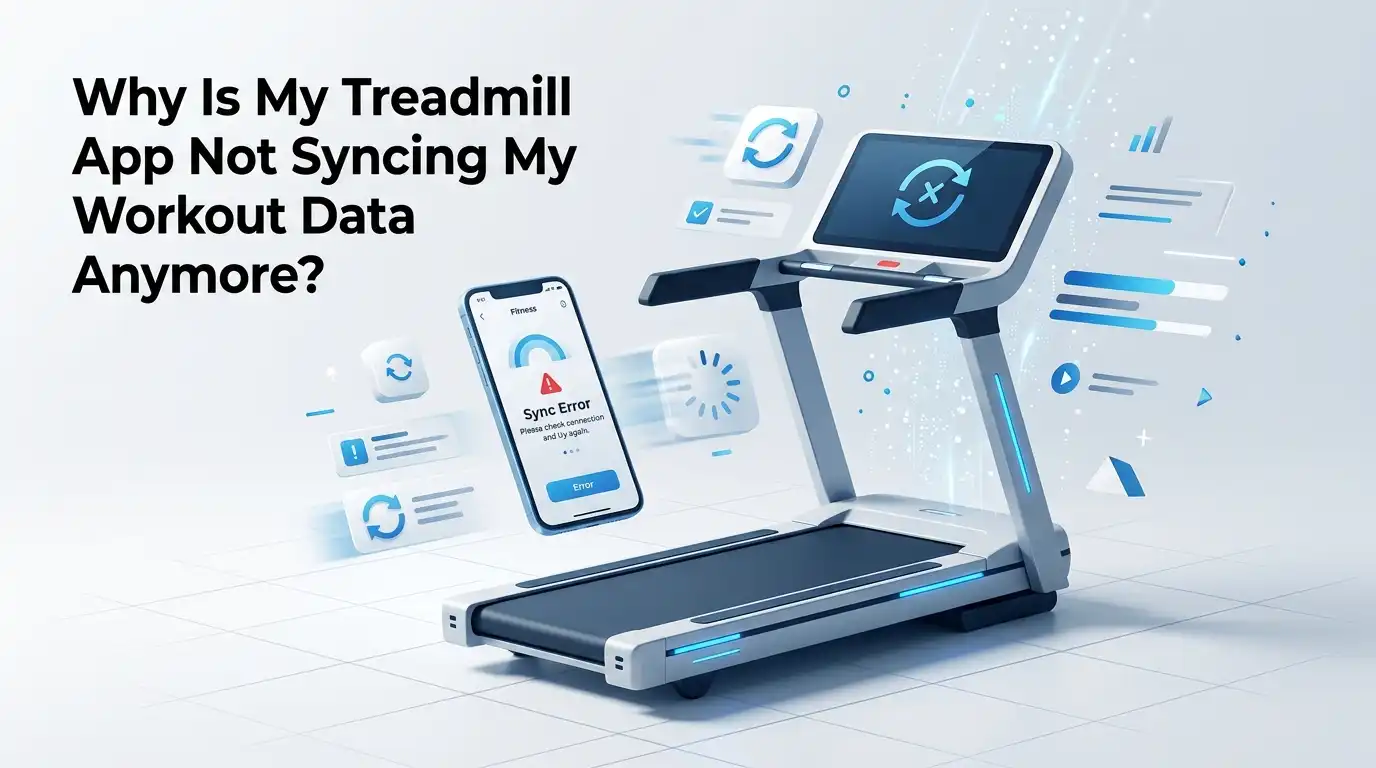
Why Is My Treadmill App Not Syncing My Workout Data Anymore?
You finished a hard run. You stepped off the treadmill feeling great. Then you opened your app, and your workout data was missing.
No miles. No calories. No pace. It feels like the run never happened. This problem frustrates thousands of treadmill users every single day, and the cause is rarely just one thing.
This guide walks you through every common reason your treadmill app stops syncing, and it gives you clear solutions for each one. By the end, your workouts will land in your app again, right where they belong.
In a Nutshell:
- Bluetooth is the usual suspect. Most sync failures start with a weak or broken Bluetooth connection between your treadmill and your phone. Toggling it off and on fixes more problems than any other single step.
- Outdated software breaks syncing fast. An old app version or old treadmill firmware can stop data from transferring. Updates often patch the exact bug causing your issue.
- Server outages are not your fault. Sometimes the app maker’s servers go down. Your data is safe and usually syncs later once their systems recover.
- Permissions matter more than you think. If your app cannot access health data, Bluetooth, or background activity, syncing simply will not happen.
- One device at a time works best. When your treadmill connects to two phones or apps at once, the link gets confused and data drops. Keep your pairing clean and simple.
- A reinstall is the reset button. When nothing else works, deleting and reinstalling the app clears hidden glitches and restores the connection in most cases.
What Syncing Actually Means and Why It Fails
Syncing is the process where your treadmill sends workout data to your app. The data travels through Bluetooth, Wi-Fi, or an internet account. Your app then stores it and shows you your stats. When any part of this chain breaks, syncing stops.
Think of it like a relay race. Your treadmill is the first runner. Bluetooth or Wi-Fi is the baton. Your app is the final runner. If the baton drops anywhere, the race fails. Common break points include a dead connection, a software bug, or a server problem on the company’s side.
Knowing this chain helps you find the weak link. The rest of this guide checks each part of that chain so you can fix the exact spot where your data gets stuck.
First Quick Checks Before You Panic
Start with the easy stuff. Many sync problems vanish after a few basic steps. Do not jump to advanced fixes when a simple one will do. These checks take less than five minutes total.
First, close the app completely and open it again. A fresh start clears small glitches. Second, restart your phone. This refreshes the Bluetooth and Wi-Fi systems.
Third, check that your treadmill and phone sit close together, ideally within a few feet. Fourth, make sure your phone is not in Airplane Mode. Fifth, confirm your internet works by loading any website.
These steps sound too simple to work. But they solve a surprising number of cases. Try them first every time before you move deeper into this guide.
Fix Your Bluetooth Connection Step by Step
Bluetooth causes most treadmill sync failures. The link between your treadmill and phone is fragile. A weak signal means lost data. Here is how to rebuild a clean connection.
Open your phone settings. Turn Bluetooth off. Wait ten seconds. Turn it back on. Now open your app and look for the connection icon. A solid icon means success.
A grey icon means failure. If it still fails, go to your Bluetooth device list, find your treadmill, and tap forget or unpair. Then pair it fresh from the start.
Pros of this method: It is fast, free, and fixes the most common cause. You can do it in under two minutes.
Cons of this method: You may need to re-enter pairing mode on the treadmill, which differs by brand. Some older treadmills drop the connection again after a while.
Restart and Reset Your Treadmill Console
Your treadmill console is a small computer. Like any computer, it can freeze or glitch. A restart often clears the problem that blocks syncing. This step works well when the app connects but no data arrives.
Find the power switch, usually near the front base or motor cover. Turn the treadmill off. Unplug it from the wall. Wait sixty seconds. This full power cycle clears the memory completely. Plug it back in and turn it on. Let the console fully load before you try to sync again.
Pros of this method: It refreshes the treadmill’s brain and fixes locked Bluetooth states caused by crashes. It costs nothing.
Cons of this method: You must wait for a full reboot, which takes a minute or two. Any workout in progress will be lost, so only do this between sessions.
Update Your App to the Latest Version
App makers release updates often. Many updates fix the exact sync bugs that frustrate users. Running an old version is one of the most overlooked causes of failed syncing. Companies like iFit, Peloton, and others patch connection problems regularly.
Open your app store. Search for your treadmill app by name. If you see an Update button, tap it. An old version may simply stop talking to the company’s current servers. After updating, restart the app and try a test sync.
Sometimes an update itself causes the bug. In that case, the next update usually fixes it. Turn on automatic updates so you never fall behind.
Pros of this method: Updates fix bugs, add features, and improve stability for free.
Cons of this method: A brand new update can briefly introduce its own glitches. You may need to wait days for a follow-up patch in rare cases.
Update Your Treadmill Firmware
Firmware is the software inside your treadmill. Outdated firmware breaks the link between your machine and your app. This is especially true after the app gets updated but the treadmill stays old. The two pieces must speak the same language.
Check your app’s settings menu for a firmware or device update option. Many treadmills update through Wi-Fi automatically. Others need you to start the update by hand. Keep your treadmill powered on and connected to Wi-Fi during the update. Never turn it off mid update, because that can damage the console.
Pros of this method: It fixes deep compatibility problems that app updates alone cannot solve. It improves long term stability.
Cons of this method: Updates can take ten minutes or more. A failed firmware update may require a service call, so follow the steps carefully.
Check Your App Permissions
Your phone controls what apps can and cannot do. If your app lacks the right permissions, syncing fails silently. You see no error. The data just never appears. This is a common cause on both iPhone and Android.
Go to your phone settings. Find your treadmill app. Check that Bluetooth access is on. Check that location access is allowed, since many phones tie Bluetooth scanning to location. Also turn on Background App Refresh so the app can sync even when closed. For health data, confirm the app can read and write to Apple Health or Health Connect.
Pros of this method: It fixes hidden blocks that cause endless confusion. It only takes a minute once you find the menu.
Cons of this method: Permission menus differ by phone model. You may need to dig through several settings screens to find them all.
Make Sure Only One Device Is Connected
Treadmills usually pair with one device at a time. When two phones or apps grab the connection, the data drops. This happens often in homes with multiple users or when you forget an old pairing. The treadmill gets confused about where to send your workout.
Check every phone, tablet, and watch in your home. Make sure only one device shows your treadmill as connected. Unpair the treadmill from any device you are not actively using. Close any other fitness apps running in the background, since they may fight for the same Bluetooth signal.
Pros of this method: It solves a sneaky problem that fools even experienced users. It prevents future drops too.
Cons of this method: You must check several devices, which takes time. In a busy household, you may need to set a rule about who connects when.
Verify Your Account and Login Status
Many treadmill apps sync data through your online account. If your login expires, syncing stops cold. Some systems even force you to log in again every day. Your workouts may record locally but never reach the cloud or your other devices.
Open your app and check that you are still logged in. Look for your name or profile picture. If you see a login screen, sign back in with your correct email and password. Make sure you use the same account on every device. Using two different accounts splits your data and breaks syncing entirely.
Pros of this method: It restores cloud syncing and reunites your data in one place.
Cons of this method: A forgotten password means a reset, which adds a few minutes. Frequent forced logins are annoying and out of your control.
Rule Out Server Outages on the Company Side
Sometimes the problem is not you at all. The app maker’s servers can go down or have bugs. When this happens, no fix on your end will work until they repair their systems. Your data is usually safe and waiting.
Check the company’s status page or social media accounts. Search for the app name plus the word outage or down. Online communities like Reddit and Facebook groups light up fast when a widespread problem hits. If others report the same issue at the same time, the cause is on the company’s side.
Pros of this method: It saves you from wasting time on fixes that cannot help. It gives you peace of mind.
Cons of this method: You can only wait for the company to fix it. Your recent workouts may sync late, sometimes the next day.
Reduce Signal Interference Around Your Treadmill
Bluetooth and Wi-Fi signals are easy to disturb. Other electronics can block the link between your treadmill and phone. This causes drops in the middle of a workout, which means lost data. The fix is to clear the airwaves.
Move other Bluetooth devices away during your run. Keep your microwave off while you exercise nearby, since microwaves jam Wi-Fi badly. Move your Wi-Fi router closer or switch it to a less crowded channel if you can. Newer devices with Bluetooth 5.0 or higher handle interference much better than older ones.
Pros of this method: It fixes random mid workout drops that no software change can stop.
Cons of this method: Finding the source of interference takes trial and error. You may not be able to move large items like a router easily.
Clear the App Cache or Reinstall the App
When nothing else works, a clean reinstall fixes most stubborn cases. Old cached data inside the app can corrupt and block syncing. Clearing it gives the app a fresh start. Many users report this as the final fix that finally works.
On Android, go to settings, find the app, open storage, and tap Clear Cache. On iPhone, you simply delete the app and reinstall it from the store. After reinstalling, log back in and grant all permissions again. Then pair your treadmill from scratch and run a short test workout.
Pros of this method: It clears deep glitches that simple fixes miss. It works for a huge share of hard cases.
Cons of this method: You must log in and set up permissions again. Any data stored only on your phone and not yet synced could be lost.
How to Protect Your Workout Data Going Forward
Fixing the problem is good. Preventing it is better. A few simple habits keep your data syncing smoothly for the long run. These steps cost you almost no effort once they become routine.
Turn on automatic updates for both your app and your firmware. Keep only one device paired to your treadmill. Sync your workout right after you finish, before you close the app. Restart your treadmill console once a week to keep it fresh. Check your account login regularly so it never quietly expires on you.
Pros of this approach: It stops most problems before they start. It saves you hours of future troubleshooting.
Cons of this approach: It requires you to build new habits. You must stay a little more mindful after each workout.
When to Contact Support or a Technician
Some problems go beyond home fixes. If you tried every step here and syncing still fails, it is time to ask for help. A persistent issue may point to a hardware fault or an account problem only the company can solve. There is no shame in reaching out.
Contact the app maker’s support team first. Describe the steps you already tried, so they skip the basics. Keep your treadmill model number and app version ready. If the console itself seems broken, a certified technician may need to inspect the Bluetooth or Wi-Fi hardware inside.
Pros of this method: Experts can fix problems you cannot reach. They can replace faulty parts.
Cons of this method: Support can take time to respond. Repairs may cost money if your warranty has expired.
Frequently Asked Questions
Why does my treadmill app suddenly stop syncing after an update?
A new update can change how the app talks to your treadmill or the company’s servers. Sometimes the update has a temporary bug. Make sure both your app and your treadmill firmware are updated to match. If the problem started right after an update, a follow up patch usually fixes it soon.
Will I lose my old workout data if I reinstall the app?
Data stored in your online account stays safe during a reinstall. You only risk losing data that lives only on your phone and has not synced yet. Try to sync any recent workouts before you delete the app. After reinstalling, log into the same account to see all your past records again.
How do I know if the problem is my phone or the treadmill?
Test with a second phone if you can. If the second phone syncs fine, the problem is your first phone. If both phones fail, the treadmill or its firmware is the likely cause. You can also check online for outage reports to rule out a server problem.
Can a weak Wi-Fi signal stop my workouts from syncing?
Yes, it can. Many treadmill apps need a stable internet connection to send data to the cloud. A weak or dropping Wi-Fi signal interrupts that process. Move your router closer to your treadmill or switch to a stronger network for better results.
How often should I restart my treadmill to avoid sync issues?
A quick restart once a week works well for most people. This clears the console’s memory and prevents small glitches from building up. You do not need to do it daily. Just power cycle it whenever you notice the connection acting slow or unreliable.
Is it bad to keep multiple devices paired to my treadmill?
It often causes problems. Most treadmills handle only one active connection at a time. Extra paired devices can grab the signal and cause your data to drop. Keep your pairing list clean and connect only the device you are using right now.

Hi, I’m Sarah Hill — the founder and voice behind Heavy Lift Vault. I’m passionate about fitness, strength training, and health technology. I spend my time researching, testing, and reviewing workout equipment and health devices so you don’t have to guess. My goal is to deliver honest, detailed, and trustworthy reviews that help you invest wisely in your fitness journey.